Farbprofil: Deaktiviert
Komposit Standardbildschirm
DataTrak
transfer
ok
no
transfer
battery
de p
th
di v
100
DIV
ma
x.d
E
e t
ime
ep t
h
95
ta n
k
75
25
5
0
data
de c
o in
fo
ba r
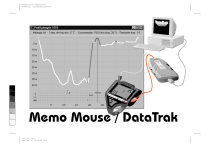
Memo Mouse / DataTrak
trk_96_f.chp
Tue Feb 11 14:05:38 1997
Farbprofil: Deaktiviert
Komposit Standardbildschirm
100
95
75
25
5
0
Page 2 – DataTrak
trk_96_f.chp
Tue Feb 11 14:05:38 1997
Farbprofil: Deaktiviert
Komposit Standardbildschirm
Table des matières
En bref – Sommaire . . . . . . . . . . . . . . . 5
Le système . . . . . . . . . . . . . . . . . . 5
Equipement recommandé . . . . . . . . . 6
Matériel fourni . . . . . . . . . . . . . . 6
Ordinateur de plongée . . . . . . . . . . . . 6
Memo Mouse . . . . . . . . . . . . . . . . 7
DataTrak pour Windows
. . . . . . . . . . 9
DataTalk pour Windows . . . . . . . . . . 11
Anciennes versions de DataTrak et
Memo Mouse . . . . . . . . . . . . . . . 11
Quoi de neuf? . . . . . . . . . . . . . 11
Récupérer les carnets de plongée des anciennes versions de DataTrak . . . . . . . . 12
Anciennes versions de Memo Mouse . . . 12
100
95
75
25
Memo Mouse . . . . . . . . . . . . . . . . . 13
Introduction . . . . . . . . . . . . . . . . 13
Mise en route de la Memo Mouse . . . . 13
Affichage . . . . . . . . . . . . . . . . 14
Remplacement de la pile . . . . . . . . 15
Enregistrer les plongées dans la Memo Mouse 15
Transférer les plongées sur un P.C. . . . . . 16
Changer la configuration de base de l’ordinateur
de plongée avec DataTalk . . . . . . . . . 18
Garantie . . . . . . . . . . . . . . . . . . 18
Installation de DataTrak et de DataTalk
19
Langage . . . . . . . . . . . . . . . . . . 19
Répertoire d’installation . . . . . . . . . . . 20
DataTrak . . . . . . . . . . . . .
Introduction . . . . . . . . . .
Démarrer DataTrak . . . .
Remarques sur l’opération .
Présentation de l’écran . . . .
Plongée sans profil . . . . .
Plongée avec profil . . . . .
Menu Fenêtre . . . . . . .
Menu Options (configuration
Quitter le programme . . . . .
. . . . .
. . . . .
. . . . .
. . . . .
. . . . .
. . . . .
. . . . .
. . . . .
de base)
. . . . .
.
.
.
.
.
.
.
.
.
.
.
.
.
.
.
.
.
.
.
.
21
21
21
21
23
23
24
25
25
26
Gérer les plongées et les carnets de plongée
Menu Carnet de plongée . . . . . . . .
Créer un nouveau carnet . . . . . .
Ouvrir un carnet existant
. . . . . .
Sauvegarder . . . . . . . . . . . . .
Sauvegarder comme … . . . . . . .
Importer un carnet . . . . . . . . .
Exporter des plongées . . . . . . . .
Numéroter . . . . . . . . . . . . .
Imprimer . . . . . . . . . . . . . .
Menu Plongées . . . . . . . . . . . . .
.
.
.
.
.
.
.
.
.
.
.
.
.
.
.
.
.
.
.
.
.
.
27
27
27
28
28
29
29
30
31
31
33
5
0
Page 3 – DataTrak
trk_96_f.chp
Tue Feb 11 14:05:40 1997
Farbprofil: Deaktiviert
Komposit Standardbildschirm
Transférer des données d’un ordinateur de
plongée ou d’une Memo Mouse . . . . .
Insérer des plongées (insertion manuelle) .
Effacer des plongées . . . . . . . . . . .
Editer les plongées . . . . . . . . . . . .
Statistiques de vos plongées . . . . . . .
Sélectionner les plongées . . . . . . . . .
Réglage du décalage horaire . . . . . . .
Analyse des profils de plongée . . . . . . .
Présentation de l’écran . . . . . . . . .
Opération . . . . . . . . . . . . . . .
Analyse des plongées . . . . . . . . . .
Fréquence des enregistrements . . . .
Exemple de plongée . . . . . . . . .
Exemple de plongées spéciales . . .
Possibilités supplémentaires d’analyse
.
.
.
.
.
.
.
.
.
.
.
.
.
.
.
.
33
35
36
37
37
38
40
41
42
45
46
47
50
52
55
. . . . . . . . . . . . . . . . 57
100
Trucs et Astuces
95
Problèmes, Causes, Solutions . . . . . . . . . . 59
75
25
5
DataTalk . . . . . . . . . .
Démarrer le programme
Options
. . . . . .
Opération . . . . . . .
Lire
. . . . . . . .
Ecrire . . . . . . . .
0
Page 4 – DataTrak
trk_96_f.chp
Tue Feb 11 14:05:41 1997
.
.
.
.
.
.
.
.
.
.
.
.
.
.
.
.
.
.
.
.
.
.
.
.
.
.
.
.
.
.
.
.
.
.
.
.
.
.
.
.
.
.
.
.
.
.
.
.
.
.
.
.
.
.
.
.
.
.
.
.
61
61
61
61
61
62
Réveiller . . . . . . . . . . . . . . . . . . . 63
Paramètres modifiables . . . . . . . . . . . 64
Pour tous les ordinateurs de plongée . . . 64
Pour les ordinateurs de plongée avec alarmes
sonores . . . . . . . . . . . . . . . . . 65
Pour les ordinateurs de plongée
à gestion d’air . . . . . . . . . . . . . . 65
Pour les ordinateurs de plongée Nitrox . . 65
Contrat de licence
. . . . . . . . . . . . . . . 67
Farbprofil: Deaktiviert
Komposit Standardbildschirm
En bref – sommaire
1
En bref – sommaire
1.1
Le système
Avec la Memo Mouse et le logiciel DataTrak/DataTalk pour Windows®, vous possédez une
extension précieuse pour votre ordinateur de plongée Aladin® ou pour tout autre instrument
compatible.
È
de p
th
div
e ti
me
DIVE
Ë
É
transfer
ok
DataTrak
no
transfer
battery
ma
x.d
ep th
ta n
k d
ata
de c
o
info
bar
Ê
100
95
1 Aladin® ou ordinateur de plongée compatible
2 Memo Mouse avec câbles de transfert et connexion série
3 Câble de connexion série
4 Ordinateur avec les logiciels DataTrak/DataTalk pour Windows®
75
25
5
0
Page 5 – DataTrak
trk_96_f.chp
Tue Feb 11 14:05:48 1997
Farbprofil: Deaktiviert
Komposit Standardbildschirm
En bref – sommaire
1.1.1 Equipement recommandé
8 PC avec CPU 386 ou supérieur
8 Windows® version 3.1X, Windows 95® ou Windows NT® (version 3.51 ou supérieure)
8 4 MO au minimum de RAM
8 2 MO au minimum d’espace disque disponible
8 Souris ou dispositif de pointage compatible
1.1.2 Matériel fourni
8 Memo Mouse
8 Disquette 3,5 pouces contenant DataTrak/DataTalk pour Windows®
8 Câble de connexion série
8 Manuel d’utilisation
1.2
100
95
75
Ordinateur de plongée
Les ordinateurs de plongée UWATEC de la famille Aladin et
des familles compatibles enregistrent les paramètres de
plongée dans leur «logbook» interne. Seule une partie de ces
données peut être affichée sur l’écran de votre ordinateur de
plongée. DataTrak permet de récupérer vos profils de
plongée enregistrés par intervalle de 20 secondes. Lorsque
la mémoire réservée aux profils est pleine, le profil le plus
ancien est effacé. Veuillez consulter le mode d’emploi de votre
ordinateur de plongée pour plus d’informations sur le «logbook» interne et la mémoire de profils.
25
5
0
Page 6 – DataTrak
trk_96_f.chp
Tue Feb 11 14:05:49 1997
Mémoire de profils –
les profils de plongée
sont stockés ici
Mémoire des paramètres de plongée –
pas d’affichage
possible sur l’écran
«Logbook» interne – ces
plongées peuvent être
affichées par l’ordinateur
de plongée, sans profils
Farbprofil: Deaktiviert
Komposit Standardbildschirm
En bref – sommaire
bar
Les ordinateurs de plongée UWATEC de la famille Aladin et des familles compatibles conservent
les paramètres des 37 dernières plongées. Les plongées les plus récentes, jusqu’à un maximum
de 200 minutes (par exemple 4 plongées de 50 minutes), sont enregistrées en détail par
intervalles de 20 secondes. Les ordinateurs à gestion d’air et Nitrox enregistrent également
les informations concernant le mélange utilisé, le travail effectué et la consommation de gaz.
1.3
Memo Mouse
La Memo Mouse est le lien (interface) entre votre ordinateur de plongée et votre ordinateur
de bureau (PC). Les programmes DataTrak et DataTalk permettent la récupération et l’échange
de données.
La Memo Mouse apporte bien plus
La Memo Mouse est une mémoire tampon
pour votre ordinateur de plongée qui permet
de stocker de manière détaillée vos paramètres et profils de plongée jusqu’à concurrence de 66 heures (66 plongées d’une
heure). Ceci vous permet de conserver vos
profils de plongée même si vous n’avez pas
accès à un ordinateur de bureau, ce qui est très utile lors de voyages de plongée.
• Les données stockées sont transférées de la Memo Mouse à votre ordinateur de bureau.
• La Memo Mouse reconnaît automatiquement tous les ordinateurs de plongée compatibles
et transfère les données de plongée du «logbook» dans votre ordinateur personnel.
• Vous pouvez conserver les données de plusieurs ordinateurs de plongée dans la même
Memo Mouse. Pour transférer le contenu de la mémoire de la Memo Mouse, un ordinateur
de plongée doit être connecté. Seules les données qui concernent l’ordinateur connecté
sont transférées.
transfer
ok
no
transfer
battery
100
95
75
25
5
0
Page 7 – DataTrak
trk_96_f.chp
Tue Feb 11 14:05:52 1997
Farbprofil: Deaktiviert
Komposit Standardbildschirm
bar
En bref – sommaire
Si les données de plusieurs ordinateurs de plongée ont été stockées dans une Memo Mouse,
le transfert des données doit être réalisé séparément pour chacun des ordinateurs de plongée.
Ceci permet d’enregistrer les données de différents ordinateurs de plongée dans des carnets
de plongée distincts.
transfer
ok
no
transfer
battery
100
95
75
25
5
0
Page 8 – DataTrak
trk_96_f.chp
Tue Feb 11 14:05:55 1997
Farbprofil: Deaktiviert
Komposit Standardbildschirm
En bref – sommaire
1.4
DataTrak pour Windows
100
95
75
25
5
0
Page 9 – DataTrak
trk_96_f.chp
Tue Feb 11 14:05:58 1997
Farbprofil: Deaktiviert
Komposit Standardbildschirm
En bref – sommaire
DataTrak pour Windows remplace votre carnet de plongée traditionnel et offre des possibilités
intéressantes:
Page 33 Avec DataTrak, importez vos plongées de votre ordinateur de plongée ou de votre Memo
Mouse.
Page 37 Insérez manuellement des plongées qui n’ont pas été réalisées avec votre ordinateur de
plongée.
Page 30 Vous pouvez conserver plus d’un carnet de plongée avec DataTrak. Chaque carnet de plongée
peut être enregistré sous le nom de son propriétaire.
Page 40 Les plongées sont toujours affichées dans l’ordre chronologique.
Page 38 Vous pouvez sélectionner vos plongées selon différents critères.
Page 37 DataTrak calcule des statistiques de vos plongées.
Page 41 Vos plongées sont représentées graphiquement sous la forme de profils si elles sont régulièrement importées de votre ordinateur de plongée. L’écran de votre ordinateur, les données
physiologiques et le niveau de saturation des huit compartiments sont affichés pour chacun
des échantillons enregistrés.
Page 48 Les possibilités d’analyse sont particulièrement utiles lors de la formation et pour l’amélioration
des techniques de plongée individuelles. DataTrak offre également une aide appréciable et
importante pour l’analyse d’accidents de plongée.
Page 31 DataTrak vous permet d’imprimer la liste de vos plongées ainsi que les données et les profils
de chaque plongée.
100
95
75
25
5
0
Page 10 – DataTrak
trk_96_f.chp
Tue Feb 11 14:05:59 1997
Farbprofil: Deaktiviert
Komposit Standardbildschirm
En bref – sommaire
1.5
DataTalk pour Windows
DataTalk est un logiciel permettant la configuration de votre ordinateur de plongée selon vos
besoins personnels. Les fonctions disponibles dépendent du type d’ordinateur de plongée que
vous utilisez.
Tous les ordinateurs de plongée peuvent être
configurés en unités métriques (mètre/bar) ou
en impérial (pied/psi). Sur les ordinateurs qui
possèdent un dispositif d’alarme sonore, les
messages d’attention peuvent être neutralisés.
Fenêtre DataTalk
lorsqu’un ordinateur Nitrox
est connecté.
1.6
Anciennes versions de DataTrak et Memo Mouse
1.6.1 Quoi de neuf?
100
95
8
75
8
25
5
DataTrak pour Windows offre à présent, contrairement aux versions DOS précédentes, tous
les avantages des applications Windows. En plus d’une prise en main conviviale et du mode
fenêtre de Windows, cette version présente un certain nombre d’avantages:
Le programme reconnaît automatiquement le port série sur lequel la Memo Mouse est
connectée. Aucune configuration n’est nécessaire. Connectez simplement votre Memo Mouse
sur un port série libre et démarrez le programme!
Toute imprimante supportée par Windows et installée peut imprimer votre carnet de plongée.
Comparativement aux versions précédentes de DataTrak, certaines fonctions ont été ajoutées:
Les données d’autres carnets de plongée peuvent être importées. Vous pouvez également
choisir et exporter des données de votre carnet de plongée.
0
Page 11 – DataTrak
trk_96_f.chp
Tue Feb 11 14:06:00 1997
Farbprofil: Deaktiviert
Komposit Standardbildschirm
En bref – sommaire
8 Vous pouvez sélectionner plusieurs plongées dans la liste déroulante. L’impression, l’exportation et les statistiques sont réalisées sur cette sélection.
1.6.2 Récupérer les carnets de plongée des anciennes versions de DataTrak
Les carnets de plongée enregistrés sous une version de DataTrak pour DOS peuvent être
ouverts par DataTrak pour Windows.
1.6.3 Anciennes versions de Memo Mouse
La nouvelle Memo Mouse et les logiciels DataTrak et DataTalk pour Windows sont compatibles
entre eux.
Aucune donnée ne peut être transférée dans DataTrak pour Windows avec les versions
précédentes de Memo Mouse. Les versions DOS de DataTrak et de DataTalk ne peuvent pas
traiter les données de la nouvelle Memo Mouse.
s
100
95
75
25
5
0
Page 12 – DataTrak
trk_96_f.chp
Tue Feb 11 14:06:01 1997
Farbprofil: Deaktiviert
Komposit Standardbildschirm
Memo Mouse
2
Memo Mouse
2.1
Introduction
È
Ê
transfer
ok
Câbles de connexion à l’ordinateur de plongée
Connecteur DB 9 pour câble série
Voyant vert (transfert correct, transfert en cours)
Voyant rouge (erreur pendant le transfert,
alarme pile faible)
5 Pile 9 volts
Ë
no
transfer
battery
1
2
3
4
Ì
É
100
95
75
2.1.1 Mise en route de la Memo Mouse
Si la Memo Mouse est correctement connectée à un ordinateur de plongée Uwatec, elle est
automatiquement activée et prête à recevoir des données. Le voyant vert clignote.
25
5
0
Page 13 – DataTrak
trk_96_f.chp
Tue Feb 11 14:06:02 1997
Farbprofil: Deaktiviert
Komposit Standardbildschirm
Memo Mouse
2.1.2 Affichage
Voyant vert
Prêt à transférer Si l’ordinateur de plongée est correctement connecté à la Memo Mouse, le
voyant vert clignote.
Transfert correct A la fin d’un transfert correct, le voyant vert reste allumé pendant 4 secondes.
Voyant rouge
Alarme pile faible Si un ordinateur de plongée est correctement connecté à la Memo Mouse et
que le voyant rouge clignote, la pile devra être changée prochainement.
no
Après la première apparition de l’alarme pile faible, la pile peut être utilisée
transfer
pendant environ 50 transferts. Changez la pile dès que possible.
Erreur pendant
battery
le transfert Deux types d’erreurs peuvent se produire pendant les transferts:
1. L’ordinateur de plongée n’est plus opérationnel après l’erreur. Le voyant
rouge de la Memo Mouse clignote pendant 5 minutes au maximum.
• Vérifiez les connections.
• Lorsque les contacts sont correctement insérés, le voyant rouge s’éteint après quelques
secondes et le voyant vert s’allume pendant 4 secondes. Votre ordinateur de plongée est
à nouveau opérationnel.
• Recommencez le transfert.
2. L’ordinateur de plongée est toujours opérationnel après l’erreur. Le voyant rouge de la Memo
Mouse clignote pendant 6 secondes.
• Vérifiez les connexions.
• Recommencez le transfert.
+
100
95
75
25
transfer
ok
5
0
Page 14 – DataTrak
trk_96_f.chp
Tue Feb 11 14:06:03 1997
Farbprofil: Deaktiviert
Komposit Standardbildschirm
Memo Mouse
2.1.3 Remplacement de la pile
Pour remplacer la pile, démontez les quatre vis cruciformes à
l’arrière du boîtier. La pile alcaline 9 volts peut être remplacée
sans perte de données si vous observez les règles suivantes:
1. Pendant le remplacement de la pile, la Memo Mouse ne doit
pas être connectée à un ordinateur de plongée. Assurez-vous
que les fiches rouge et noire ne sont pas en contact entre elles
ni avec un objet quelconque.
2. Après avoir retiré la pile usagée, une nouvelle pile doit être
connectée dans les 15 secondes.
Il est recommandé dans tous les cas de transférer les données
à un PC avant de remplacer la pile.
transfer
ok
bar
no
transfer
battery
s
2.2
Enregistrer les plongées dans la Memo Mouse
Après la plongée, transférez les nouvelles données de votre ordinateur de plongée dans votre
Memo Mouse.
Procédez comme suit:
1. Allumez votre ordinateur de plongée.
–
transfer
2. Connectez les fiches de la Memo Mouse
ok
dans les contacts de votre ordinateur
no
transfer
de plongée:
battery
Fiche rouge: contact B
B
Fiche noire: contact –
Vérifiez que les fiches sont fermement
insérées avant de commencer le transfert!
É
100
95
75
È
Ê
s
25
5
0
Page 15 – DataTrak
trk_96_f.chp
Tue Feb 11 14:06:06 1997
Farbprofil: Deaktiviert
Komposit Standardbildschirm
Memo Mouse
3. Vérification des connections.
Le voyant vert doit clignoter.
4. Démarrez le transfert.
Enclenchez le mode «Carnet de plongée». Confirmez ce mode pour afficher la première
plongée. Votre ordinateur de plongée envoie son identification puis les données de plongée
à la Memo Mouse.
Les fiches de connexion possèdent sur leur partie supérieure des contacts que vous pouvez
utiliser comme les contacts de votre ordinateur de plongée.
5. Vérifiez le transfert. Le voyant vert doit rester allumé pendant au moins 4 secondes.
Si le voyant rouge clignote, procédez comme décrit à la page 14 (Erreur de transfert).
+
2.3
Transférer les plongées sur un PC
È
DataTrak
Ê
100
de p
th
div
95
DIVE
ma
x.d
e
me
no
transfer
battery
Ì
pth
ta n
k d
ata
75
e ti
Ë
transfer
ok
de c
o in
fo
bar
É
25
5
0
Page 16 – DataTrak
trk_96_f.chp
Tue Feb 11 14:06:13 1997
Farbprofil: Deaktiviert
Komposit Standardbildschirm
Memo Mouse
Si vous désirez transférer les données enregistrées dans la Memo Mouse ou dans votre
ordinateur de plongée, procédez comme suit:
1. Démarrez DataTrak sur votre ordinateur personnel: page 21.
s2. Assurez-vous
que l’heure de votre PC est correcte.
Connectez votre Memo Mouse au PC. Pour cela, connectez le câble série au connecteur de
la Memo Mouse et à un port série libre de votre PC (port COM).
3. Connectez votre ordinateur de plongée à la Memo Mouse: page 15, point 2.
Fiche rouge: contact B
Fiche noire: contact –
4. Vérification des connexions. Le voyant vert doit clignoter.
5. Utilisez la fonction Plongées/Transfert de DataTrak (page 34).
6. Transfert des données. Procédez comme décrit aux points 4 et 5 page 16.
7. Vérifiez les données transférées.
Un ordinateur de plongée doit toujours être connecté à la Memo Mouse pour le transfert des
Le transfert est démarré et contrôlé par l’ordinateur de plongée. De plus, la première
s données.
information transférée est l’identification de l’ordinateur de plongée. Ainsi, si les données de
100
plusieurs ordinateurs de plongée ont été stockées dans la même Memo Mouse, seules les
données de l’ordinateur de plongée connecté sont transférées dans DataTrak pour Windows.
95
75
25
5
0
Page 17 – DataTrak
trk_96_f.chp
Tue Feb 11 14:06:14 1997
Farbprofil: Deaktiviert
Komposit Standardbildschirm
Memo Mouse
2.4
Changer la configuration de base de l’ordinateur de plongée avec DataTalk
La communication de votre ordinateur de plongée et DataTalk pour Windows est également
réalisée grâce à la Memo Mouse. Dans le chapitre DataTalk (page 61), vous trouverez une
description détaillée de la configuration de votre ordinateur de plongée. De manière simplifiée,
procédez comme suit:
1. Démarrez DataTalk pour Windows sur votre ordinateur personnel: page 61.
2. Connectez l’ordinateur de plongée, la Memo Mouse et le PC, comme décrit à la page 17
(points 2 à 4).
3. Actionnez «Lire». La configuration actuelle est chargée et affichée par DataTalk: page 61.
4. Modifiez la configuration: page 64.
5. Actionnez «Ecrire»: page 62. La nouvelle configuration est transférée dans votre ordinateur
de plongée.
2.5
Garantie
La garantie de la Memo Mouse est assujettie aux conditions suivantes:
• Les dommages et défauts ayant pour origine des vices de fabrication seront pris en charge
gratuitement dans les 12 mois qui suivent l’achat.
• Les prestations de garantie fournies ne prolongent pas la période de garantie.
• Pour bénéficier de nos prestations de garantie, veuillez renvoyer l’appareil avec une preuve
d’achat datée.
• Les dommages consécutifs à des influences extérieures ou des opérations réalisées par des
personnes non autorisées par le constructeur sont exclus de la garantie.
• Le constructeur refuse les extensions de garantie fournies par un représentant local.
100
95
75
25
5
0
Page 18 – DataTrak
trk_96_f.chp
Tue Feb 11 14:06:15 1997
Farbprofil: Deaktiviert
Komposit Standardbildschirm
Installation de DataTrak et de DataTalk
3
Installation de DataTrak et de DataTalk
Pour installer les logiciels DataTrak/DataTalk pour Windows, Windows (version 3.1X), Windows
95 ou Windows NT doit être déjà installé sur votre ordinateur personnel.
1. Insérez la disquette programme (ou une copie) dans le lecteur de disquette (A ou B).
2. Choisissez la fonction «Exécuter» dans le gestionnaire de programme (Windows 3.1X) ou dans
le menu Démarrer (Windows 95).
3. Tapez A:\setup et confirmez avec [ENTREE]. L’installation du programme se déroule automatiquement.
Pendant le processus d’installation, vous devez fournir les informations suivantes:
3.1
Langage
Sélectionnez le langage désiré. Ce langage peut être changé plus tard (voir menu Options,
page 25).
100
95
75
25
5
0
Page 19 – DataTrak
trk_96_f.chp
Tue Feb 11 14:06:16 1997
Farbprofil: Deaktiviert
Komposit Standardbildschirm
Installation de DataTrak et de DataTalk
3.2
Répertoire d’installation
Le programme d’installation va vous demander sous quel répertoire vous souhaitez installer
DataTrak/DataTalk. Par défaut, nous vous proposons C:\DTRAKWIN. Choisissez un autre
répertoire ou confirmez avec «Installer».
Windows 3.1X installe un nouveau groupe DataTrak dans le gestionnaire de programme.
Windows 95 insert un groupe DataTrak dans le menu Démarrer. Ces groupes contiennent les
4 icônes suivants:
DataTrak programme «Carnet de plongée
électronique»
DataTalk programme de configuration d’ordinateur de plongée
Fichier carnet de plongée avec des exemples
de plongées
Dernières informations sur le programme
100
95
75
25
5
0
Page 20 – DataTrak
trk_96_f.chp
Tue Feb 11 14:06:17 1997
Farbprofil: Deaktiviert
Komposit Standardbildschirm
DataTrak
4
DataTrak
4.1
Introduction
4.1.1 Démarrer DataTrak
Pour démarrer le programme, ouvrez le groupe DTRAKWIN.
Démarrez le programme en cliquant deux fois sur l’icône DataTrak. Si vous démarrez le
programme pour la première fois, un carnet de plongée portant le nom «Example.log» sera
ouvert. Il contient des exemples de plongées qui vont vous permettre de faire vos premiers
pas dans le programme. Certains de ces exemples sont repris dans ce manuel.
4.1.2 Remarques sur l’opération
Le fonctionnement du programme est similaire aux autres applications sous Windows.
100
Opération avec la souris
Au moyen de la souris, vous pouvez sélectionner et exécuter toutes les commandes des menus
et choisir les plongées dans la liste déroulante. Les fonctions les plus importantes sont affichées
grâce à des icônes. Déplacez la flèche de la souris jusqu’à l’endroit désiré et cliquez sur le
bouton gauche de la souris.
Statistiques
Sélection des plongées
Fuseau horaire
Compartiments
95
75
25
5
Nouveau
carnet de plongée
Ouvrir carnet de plongée
Sauvegarder carnet de plongée
Imprimer
Effacer plongée
Insérer plongée
Editer plongées
Transfert plongées
Physiologie
Infos plongée
Profil
Données plongée
0
Page 21 – DataTrak
trk_96_f.chp
Tue Feb 11 14:06:18 1997
Farbprofil: Deaktiviert
Komposit Standardbildschirm
DataTrak
Opération avec le clavier
Toutes les commandes des menus peuvent être appelés au moyen de raccourcis clavier.
Appuyez sur ALT et sur la lettre soulignée de la commande ou du menu.
Touches de fonction
Les fonctions les plus importantes et les plus utilisées
peuvent être appelées au moyen de touches de fonction.
F2 Sauvegarder le carnet de plongée
F3 Ouvrir un carnet de plongée
F5 Recevoir les données de l’ordinateur de plongée
(transfert)
F7 Insérer une plongée dans la liste
F8 Effacer une plongée de la liste
Alt+T
Alt+N
Alt+A
Alt+E
Alt+A
Alt+S
Alt+F
100
95
75
25
5
0
Page 22 – DataTrak
trk_96_f.chp
Tue Feb 11 14:06:19 1997
Farbprofil: Deaktiviert
Komposit Standardbildschirm
DataTrak
4.2
Présentation de l’écran
4.2.1 Plongée sans profil
Barre de titre
Barre de menu
Barre d’icônes
Liste des plongées
100
Fenêtre des données avec
paramètres de plongée
95
Plongée sélectionnée
75
affichages d’écran présentés dans ce manuel ont été réalisés avec un PC sous Windows
+ Les
95. Ils peuvent être légèrement différents si vous travaillez sous Windows 3.1X.
25
5
0
Page 23 – DataTrak
trk_96_f.chp
Tue Feb 11 14:06:21 1997
Farbprofil: Deaktiviert
Komposit Standardbildschirm
DataTrak
4.2.2 Plongée avec profil
DataTrak représente graphiquement vos plongées sous forme de profils si les paramètres de
plongée ont été transférés régulièrement à partir de votre ordinateur de plongée. Si vous
appréciez les profils de plongées et les multiples possibilités d’analyses, faites le transfert des
données suffisamment fréquemment pour conserver les profils de plongée (voir le manuel
d’utilisation de votre ordinateur de plongée Aladin).
Barre titre
Barre menu
Barre d’icônes
Liste des plongées
Fenêtre de données
des tissus
Fenêtre de données
physiologiques
100
Fenêtre
de profil de plongée
Fenêtre
ordinateur de plongée
Plongée sélectionnée
95
75
25
5
0
Page 24 – DataTrak
trk_96_f.chp
Tue Feb 11 14:06:24 1997
Farbprofil: Deaktiviert
Komposit Standardbildschirm
DataTrak
Les plongées pour lesquelles un profil est disponible peuvent être reconnues dans la liste par
le signe qui suit le numéro de la plongée.
4.2.3 Menu Fenêtre
+
Les commandes du menu Fenêtre et les icônes de la barre des icônes
servent à activer, minimiser et rappeler les différents écrans.
Les fenêtres Profil, Infos plongée, Physiologie et Compartiments ne peuvent être activées que si le profil de la plongée affichée est disponible.
Les commandes indisponibles sont représentées en gris.
4.2.4 Menu Options (configuration de base)
Sélectionnez la langue et le système d’unités à afficher dans DataTrak, dans le menu Options,
sous «Données du pays».
Métrique
Impérial
Profondeur de la
plongée ou altitude
m (mètre)
ft (feet)
Température
°C (Celsius)
°F (Fahrenheit)
95
Volume du bloc
l (litre)
cft (cubicfeet)
75
Air consommé
bar
psi
100
25
5
0
Page 25 – DataTrak
trk_96_f.chp
Tue Feb 11 14:06:25 1997
Farbprofil: Deaktiviert
Komposit Standardbildschirm
DataTrak
4.3
Quitter le programme
Pour quitter le programme, ouvrir le menu «Carnet de plongée» et choisir la commande
Quitter.
100
95
75
25
5
0
Page 26 – DataTrak
trk_96_f.chp
Tue Feb 11 14:06:26 1997
Farbprofil: Deaktiviert
Komposit Standardbildschirm
Gérer les plongées et les carnets de plongée
100
5
Gérer les plongées et les carnets de plongée
5.1
Menu Carnet de plongée
Le programme Carnet de plongée de DataTrak vous permet d’enregistrer vos plongées dans
un ou plusieurs carnets de plongée. Ceci signifie que plusieurs personnes peuvent gérer leurs
plongées avec le même programme, que les clubs de plongée peuvent enregistrer et gérer
les plongées de tous leurs membres, que les écoles de plongée peuvent conserver toutes les
plongées d’entraînement de leurs instructeurs ou que vous pouvez créer des carnets de plongée
différents en fonction de leur type ou par année.
Ce chapitre va vous indiquer:
8 comment ouvrir, créer et conserver des carnets de plongée;
8 comment exporter des plongées d’un carnet de plongée et les réimporter dans d’autres carnets
de plongée (page 30);
8 comment numéroter vos plongées (page 31);
8 comment imprimer les données de vos plongées de multiples façons (page 31).
5.1.1 Créer un nouveau carnet
ä Choisissez Carnet de plongée/Nouveau afin de créer un nouveau carnet
de plongée.
95
L’écran présente un carnet de plongée vierge. Le nouveau carnet de
plongée n’a pas encore de nom. Le barre de titre affiche «NONAME.LOG».
75
ä Maintenant, entrez manuellement vos données ou importez-les à partir
de votre ordinateur de plongée.
25
5
0
Page 27 – DataTrak
trk_96_f.chp
Tue Feb 11 14:06:27 1997
Farbprofil: Deaktiviert
Komposit Standardbildschirm
Gérer les plongées et les carnets de plongée
5.1.2 Ouvrir un carnet existant
Quand vous démarrez DataTrak, le dernier carnet de plongée utilisé
s’ouvre automatiquement. Vérifiez le nom du carnet de plongée sur
la barre de titre.
Pour ouvrir un autre carnet de plongée, procédez comme suit:
ä Sélectionnez Carnet de plongée/Ouvrir.
ä Sélectionnez le carnet de plongée désiré dans la boîte de dialogue
(par exemple EXAMPLE.LOG).
La dernière plongée du carnet ouvert s’affiche sur l’écran.
5.1.3 Sauvegarder
ä Sélectionnez Carnet de plongée/Sauvegarder pour sauvegarder les modifications ou les ajouts
dans un carnet de plongée existant. Les nouvelles données et les modifications sont enregistrées sous le nom existant.
100
95
Si vous sélectionnez cette fonction alors que le carnet de plongée n’a pas de nom (NONAME.LOG), DataTrak vous suggère d’entrer un nom (par exemple MARTIN.LOG). Dans ce
cas, la fonction Sauvegarder a le même effet que la fonction Sauvegarder comme …
75
25
5
0
Page 28 – DataTrak
trk_96_f.chp
Tue Feb 11 14:06:28 1997
Farbprofil: Deaktiviert
Komposit Standardbildschirm
Gérer les plongées et les carnets de plongée
5.1.4 Sauvegarder comme …
ä Sélectionnez Sauvegarder comme … lorsque vous voulez enregistrer un carnet de plongée
sous un nouveau nom.
DataTrak vous demande de rentrer un nom. Il peut contenir au maximum 8 caractères. Vous
n’avez pas besoin de saisir l’extension «.LOG».
5.1.5 Importer un carnet
Si vous souhaitez insérer les plongées d’un autre carnet de plongée
dans le carnet déjà ouvert, procédez de la manière suivante:
ä Sélectionnez Importer à partir du menu Carnet de plongée.
ä Dans la boîte de dialogue, sélectionnez le carnet contenant les plongées
à insérer.
100
95
+
75
DataTrak insère les plongées concernées dans la liste des plongées de
votre carnet de plongée en fonction de la date et de l’heure.
Si les plongées insérées sont plus anciennes, les plongées plus récentes sont renumérotées
automatiquement.
25
5
0
Page 29 – DataTrak
trk_96_f.chp
Tue Feb 11 14:06:29 1997
Farbprofil: Deaktiviert
Komposit Standardbildschirm
Gérer les plongées et les carnets de plongée
5.1.6 Exporter des plongées
DataTrak vous permet d’exporter des plongées sélectionnées dans votre carnet de plongée et
de les enregistrer sous un nouveau nom. Procédez comme suit:
ä Pointez les plongées à exporter.
• Avec la fonction Sélection à partir du menu Plongées (page
38).
• Manuellement avec la souris à partir de la liste de plongées
de votre carnet de plongée.
<1470> cliquer sur un numéro de plongée sélectionne cette
plongée;
<1472–1475> cliquer et glisser sur plusieurs numéros de
plongée sélectionne une suite de plongées;
<1478, 1480, 1483> en gardant la touche Ctrl appuyée et
en cliquant sur différents numéros de plongée, les plongées
pointées sont sélectionnées.
100
ä Sélectionnez Exporter à partir du menu Carnet de plongée.
Rentrez un nouveau nom pour ce carnet avec les plongées exportées.
95
75
25
5
0
Page 30 – DataTrak
trk_96_f.chp
Tue Feb 11 14:06:30 1997
Farbprofil: Deaktiviert
Komposit Standardbildschirm
Gérer les plongées et les carnets de plongée
5.1.7 Numéroter
Lorsque vous ouvrez un nouveau carnet de plongée, la numérotation des plongées commence par 0001. Lorsque les
plongées sont exportées, elles conservent leur numéro initial
dans le nouveau carnet de plongée. Vous pouvez changer cela
au moyen de la fonction Numéroter en entrant le numéro de
la plongée par lequel la numérotation doit débuter dans ce
carnet de plongée.
5.1.8 Imprimer
Si vous sélectionnez la fonction Imprimer, vous obtenez une boîte de dialogue qui vous offre
plusieurs possibilités pour imprimer les données de votre carnet de plongée avec l’imprimante
installée dans Windows.
100
95
Type d’impression
Texte Imprime les paramètres de la plongée affichée dans la fenêtre Données.
Graphique N’imprime que les profils de plongée. Deux profils sont imprimés par page.
Texte et graphique Imprime les paramètres et le profil de la plongée sur la même page.
Sommaire Imprime un sommaire de plongées (une ligne par plongée).
Statistiques Imprime les statistiques du carnet de plongée ouvert.
75
25
5
0
Page 31 – DataTrak
trk_96_f.chp
Tue Feb 11 14:06:31 1997
Farbprofil: Deaktiviert
Komposit Standardbildschirm
Gérer les plongées et les carnets de plongée
Domaine
Dans le champ Domaine, vous déterminez
quelles plongées doivent être imprimées.
Plongées
sélectionnées N’imprime que les plongées sélectionnées.
Pour sélectionner les plongées, il existe deux
méthodes:
• Manuellement en cliquant sur la liste des
plongées (voir page 30);
• Avec la fonction Sélection dans le menu
Plongées (voir page 38).
Carnet de plongée Imprime toutes les plongées du carnet de
plongée.
Il existe un carnet de plongée avec des chemises transparentes spécialement développé pour
+ DataTrak
disponible chez votre détaillant. Le papier prédécoupé fourni est au format de ces
chemises. Si vous utilisez du papier ordinaire, vous devrez couper les feuilles à la bonne
dimension et les placer dans les chemises. C’est beaucoup plus facile avec les feuilles de
papier prédécoupées pour lesquelles il n’est pas utile de recouper. Demandez conseil à votre
détaillant!
100
95
75
25
5
0
Page 32 – DataTrak
trk_96_f.chp
Tue Feb 11 14:06:33 1997
Farbprofil: Deaktiviert
Komposit Standardbildschirm
Gérer les plongées et les carnets de plongée
5.2
Menu Plongées
Les plongées sont soit transférées de l’ordinateur de plongée ou de
la Memo Mouse vers l’ordinateur personnel soit saisies manuellement.
Ce chapitre vous dit:
8 comment importer les données à partir de votre ordinateur de
plongée,
8 comment insérer, effacer, compléter ou modifier les plongées manuellement,
8 comment sélectionner les plongées en fonction de certains critères,
8 comment DataTrak évalue statistiquement vos plongées.
Aussi, nous vous conseillons de suivre l’exemple proposé pour effectuer vos premiers pas dans
ces fonctions.
100
95
75
5.2.1 Transférer des données d’un ordinateur de plongée ou d’une Memo Mouse
Pour récupérer les données de plongée à partir d’un ordinateur de plongée ou d’une Memo
Mouse, procédez comme suit:
Avant de transférer les données, assurez-vous que la date et l’heure de votre ordinateur
personnel sont correctes! Ceci est important car les dates et heures de vos plongées sont
calculées par DataTrak en utilisant l’horloge de votre PC.
Si l’horloge de votre PC est inexacte, cela va entraîner des erreurs sur les dates et heures de
vos plongées. Connectez le câble série à un port série libre sur votre PC, et établissez les
connexions entre la Memo Mouse et l’ordinateur de plongée (voir page 15).
s
25
5
0
Page 33 – DataTrak
trk_96_f.chp
Tue Feb 11 14:06:34 1997
Farbprofil: Deaktiviert
Komposit Standardbildschirm
Gérer les plongées et les carnets de plongée
ä Dans le logiciel DataTrak, ouvrez le carnet de plongée dans lequel vous voulez transférer les
données de plongée.
ä Sélectionnez la fonction Plongées/Transfert. Le programme vous prévient qu’il est prêt à
recevoir les données, et le chronomètre commence à décompter 60 secondes. Le transfert de
données doit être démarré dans ce laps de temps.
Vérifiez ou modifiez les options de transfert (voir Trucs et astuces, page 57).
Les plus récentes Seules les plongées plus récentes que la dernière plongée du carnet sont transférées (date et
heure).
Toutes les plongées Toutes les plongées de l’ordinateur de plongée connecté et les plongées de cet ordinateur
enregistrées dans la Memo Mouse sont transférées.
ä Activez le mode Carnet de plongée de votre ordinateur de plongée.
Ceci permet de transférer les données de l’ordinateur de plongée connecté et les plongées
de cet ordinateur enregistrées dans la Memo Mouse dans le carnet de plongée DataTrak en
respectant l’ordre chronologique.
100
95
Si votre carnet de plongée est vierge, DataTrak vous demandera le numéro initial (numéro
+ de
la première plongée) après le transfert de données de façon à ce que vous puissiez
75
continuer avec votre nombre de plongées actuel.
A chaque plongée est alloué un numéro dans le carnet de plongée. Vous trouverez ces numéros
dans la liste des plongées sur le côté gauche de votre écran. Les plongées sont classées en
fonction de la date et de l’heure.
25
5
0
Page 34 – DataTrak
trk_96_f.chp
Tue Feb 11 14:06:35 1997
Farbprofil: Deaktiviert
Komposit Standardbildschirm
Gérer les plongées et les carnets de plongée
s
s
s
100
DataTrak crée une représentation graphique des plongées qui sont marquées à côté de leur
numéro et présente d’autres données sur la plongée (page 41, Analyse des profils de plongée).
Ces données ne sont disponibles que pour un nombre limité de plongées dans l’ordinateur
de plongée (voir le manuel d’utilisation de votre ordinateur de plongée). Si la mémoire des
profils de votre ordinateur est pleine, les informations concernant les plus anciens profils sont
automatiquement effacées. C’est pourquoi il est très important de transférer régulièrement
vos plongées de votre ordinateur de plongée dans DataTrak ou dans la Memo Mouse.
Après avoir importé les données, n’oubliez pas de les compléter par les informations qui ne
sont pas enregistrées par votre ordinateur de plongée (site de plongée, climat, type de
plongée, activité, etc.). Utilisez la fonction Editer pour ces saisies (page 37). Les calculs
statistiques de DataTrak ne prennent tout leur sens qu’en présence de toutes les données
relatives à la plongée.
Lorsque vous utilisez des ordinateurs de plongée à gestion d’air, le volume du bloc utilisé est
particulièrement important puisque la consommation d’air ne peut être calculée qu’avec cette
donnée.
Si votre ordinateur de plongée est en mode SOS, vous pouvez toujours transférer vos données
dans votre ordinateur personnel. Procédez de la même manière que décrit ci-dessus. Seule
l’activation du carnet de plongée n’est pas possible (l’ordinateur de plongée est bloqué). Les
données sont transférées pendant 1 minute automatiquement.
95
5.2.2 Insérer des plongées (insertion manuelle)
75
ä Sélectionnez la fonction Insérer si vous voulez utiliser DataTrak sans ordinateur de plongée
ou si vous voulez saisir une plongée que vous n’avez pas effectuée avec votre Aladin.
25
DataTrak ouvre une feuille vierge dans laquelle vous pouvez saisir vos paramètres de plongée.
Le curseur est placé dans le champ Date où la date et l’heure actuelles sont inscrites. Vous
5
0
Page 35 – DataTrak
trk_96_f.chp
Tue Feb 11 14:06:36 1997
Farbprofil: Deaktiviert
Komposit Standardbildschirm
Gérer les plongées et les carnets de plongée
pouvez procéder à votre saisie immédiatement. Tous les champs peuvent être édités. Confirmez
votre saisie par OK. DataTrak insère la nouvelle plongée en fonction de la date et de l’heure
à sa place appropriée dans votre carnet de plongée. Si c’est nécessaire, les plongées les plus
récentes sont automatiquement numérotées.
5.2.3 Effacer des plongées
Si vous souhaitez effacer une ou plusieurs plongées de votre carnet de plongée, procédez de
la façon suivante:
ä Sélectionnez la ou les plongées que vous voulez effacer dans votre carnet de plongée.
ä Sélectionnez la fonction Effacer ou appuyez sur la touche [Suppr].
DataTrak vous demande si vous voulez vraiment effacer votre plongée. NON referme la boîte
de dialogue sans effacer la plongée. Si vous choisissez OUI, la plongée est effacée.
L’effacement des plongées est définitif pour toutes les données relatives à ces plongées (profils
plongée inclus). La récupération n’est possible qu’en retransférant les données de l’ordis denateur
de plongée si elles sont encore enregistrées en mémoire ou dans la Memo Mouse (le
100
carnet de plongée interne peut enregistrer plus de plongées que celles qui apparaissent à
l’écran). Pour retransférer des données plus anciennes que la dernière plongée (la plus
récente), activez l’option «Toutes les plongées» dans la boîte de dialogue Importer les plongées.
Si maintenant vous importez des données de votre ordinateur de plongée, toutes les plongées
qui ne sont plus (ou pas encore) enregistrées dans le carnet de plongée sont insérées.
95
75
25
5
0
Page 36 – DataTrak
trk_96_f.chp
Tue Feb 11 14:06:37 1997
Farbprofil: Deaktiviert
Komposit Standardbildschirm
Gérer les plongées et les carnets de plongée
5.2.4 Editer les plongées
Cette fonction permet de modifier ou de compléter les données ou d’enlever des informations.
Sélectionnez la plongée que vous souhaitez éditer à partir de la liste des plongées. Sélectionnez
Editer ou cliquez deux fois sur le numéro de la plongée dans la liste. Saisissez les modifications
dans les champs respectifs. Pour les enregistrer, appuyez sur la touche OK; si les modifications
ne doivent pas être enregistrées, quittez la boîte de dialogue avec Annuler.
Les informations importées de l’ordinateur de plongée sont automatiquement représentées
s en gris et ne peuvent pas être modifiées.
Si vous avez importé vos données à partir de votre ordinateur de plongée, vous devrez utiliser
la fonction Editer, parce que vous désirez conserver des paramètres autres que
s fréquemment
ceux importés.
Surtout, avec les ordinateurs à gestion d’air, le volume du bloc utilisé doit figurer pour permettre
le calcul de la consommation d’air.
100
5.2.5 Statistiques de vos plongées
DataTrak vous permet d’obtenir différentes statistiques de vos plongées en fonction de
nombreux critères.
95
ä Sélectionnez la fonction Statistiques
75
L’écran affiche les statistiques des plongées du carnet de plongée en cours. L’évaluation est
présentée en absolu et en pourcentage:
• Nombre total de plongées (=100%)
• Nombre de plongées successives
• Nombre de plongées par zones de profondeur (tranches de 10 m)
25
5
0
Page 37 – DataTrak
trk_96_f.chp
Tue Feb 11 14:06:38 1997
Farbprofil: Deaktiviert
Komposit Standardbildschirm
Gérer les plongées et les carnets de plongée
+
100
• Nombre de plongées par type de plongée
• Nombre de plongées par activité
• Temps total d’immersion (somme des temps
de plongée)
• Temps moyen d’une plongée
Si vous avez sélectionné un certain nombre de
plongées manuellement ou avec la fonction
Sélection, les statistiques ne portent que sur ces
plongées!
La dernière ligne de la fenêtre Statistiques vous
permet de choisir entre les statistiques portant
sur tout le carnet de plongée ou uniquement sur les plongées sélectionnées.
Le type de plongée ainsi que l’activité doivent être entrés manuellement quand les données
sont importées à partir de l’ordinateur de plongée (menu Plongées, Editer, page 37).
5.2.6 Sélectionner les plongées
Lorsque vous saisissez vos paramètres de plongée dans le carnet de plongée, vous pouvez
sélectionner un certain nombre de critères prédéterminés pour classer vos plongées. Ici, vous
utilisez ces critères pour sélectionner certaines plongées du carnet de plongée ouvert.
95
ä Choisissez la fonction Plongées/Sélection
75
ä Choisissez le critère que vous voulez utiliser pour sélectionner les plongées.
25
5
0
Page 38 – DataTrak
trk_96_f.chp
Tue Feb 11 14:06:40 1997
Farbprofil: Deaktiviert
Komposit Standardbildschirm
Gérer les plongées et les carnets de plongée
Date Si vous souhaitez sélectionner des plongées que vous avez faites pendant une certaine période,
entrez les dates de début et de fin de période. Si vous ne choisissez pas de critères pour ce
champ, la période de temps considérée comprend toutes les plongées de ce carnet de plongée.
Zones de profondeur Si vous souhaitez sélectionner les plongées effectuées dans une certaine profondeur, entrez
la zone correspondante (par exemple 0 à 20 m, pour la zone allant de 0 à 20 m).
Type plongée Lorsque vous saisissez vos plongées, vous pouvez les classer en fonction de certains critères
de type. Cliquez sur l’icône «main» à la droite de la ligne d’entrée et sélectionnez un type de
plongée.
L’exemple présenté montre les plongées dans
la courbe, eau de mer.
Activités A la saisie des plongées, vous pouvez définir
une activité. Par exemple, DataTrak affichera
les plongées photo en sélectionnant ce critère
(même procédure que pour le type de
plongée).
ä Si vous avez saisi tous les critères de sélection,
appuyez sur OK.
100
la liste des plongées, toutes les plongées répondant aux critères demandés sont
+ Dans
marquées. La sélection des plongées a une influence sur les fonctions Imprimer, Exporter,
95
Statistiques, Effacer et Fuseau horaire.
75
25
5
0
Page 39 – DataTrak
trk_96_f.chp
Tue Feb 11 14:06:41 1997
Farbprofil: Deaktiviert
Komposit Standardbildschirm
Gérer les plongées et les carnets de plongée
5.2.7 Réglage du décalage horaire
La date et l’heure de vos plongées sont calculées et basées sur l’horloge de votre ordinateur
personnel lorsque vous importez les plongées dans votre PC. Si vous souhaitez importer des
plongées réalisées dans un pays avec un autre fuseau horaire que celui retenu dans votre PC
vous devez effectuer une conversion afin de retrouver les dates et heures locales de vos
plongées.
Exemple Si vous avez importé des plongées d’un pays avec un décalage de +4 heures, procédez
comme suit après avoir importé les plongées à partir de votre ordinateur de plongée:
ä Sélectionnez les plongées dont vous devez modifier l’heure.
ä Sélectionnez la fonction Fuseau horaire.
ä Entrez la différence de temps (04:00) et le signe pour
la direction du fuseau horaire (+).
ä Cliquez sur OK.
100
95
s
75
25
5
0
Page 40 – DataTrak
trk_96_f.chp
Tue Feb 11 14:06:42 1997
La conversion de l’heure de plongée et de la date pour les plongées sélectionnées se fait
automatiquement.
Avant d’importer les données, assurez-vous que l’horloge de votre PC est correcte afin de
garantir un calcul exact des heures et dates de plongée.
Farbprofil: Deaktiviert
Komposit Standardbildschirm
Analyse des profils de plongée
6
Analyse des profils de plongée
DataTrak représente graphiquement vos plongées sous forme de profils si les paramètres de
plongée ont été transférés régulièrement à partir de votre ordinateur de plongée. Si vous
appréciez les profils de plongées et les multiples possibilités d’analyses, faites le transfert des
données suffisamment fréquemment pour conserver les profils de plongée (voir le manuel
d’utilisation de votre ordinateur de plongée Aladin). Vous reconnaîtrez vos plongées avec
profils à la marque qui suit le numéro de la plongée dans la liste des plongées.
n’aviez pas la possibilité de transférer directement vos données dans DataTrak pendant
+ Siunevous
longue période (par exemple lors de vacances de plongée), vous devriez emporter votre
Memo Mouse pour enregistrer les paramètres et profils de plongées (capacité de votre Memo
Mouse: 66 plongées d’une heure).
fenêtre Profil est activée en cliquant sur l’icône correspondant.
+ La
Vous pouvez alterner rapidement la fenêtre Profil et la fenêtre Données de plongée avec les
touches [Ctrl] et [Tab] (tabulation).
représentation graphique et les données de plongée varient en fonction de l’ordinateur de
+ La
plongée utilisé. Dans ce manuel, sont représentées les données d’un Aladin Air X.
100
95
75
25
5
0
Page 41 – DataTrak
trk_96_f.chp
Tue Feb 11 14:06:43 1997
Farbprofil: Deaktiviert
Komposit Standardbildschirm
Analyse des profils de plongée
6.1
Présentation de l’écran
A Fenêtre Ordinateur de plongée
B Fenêtre Données physiologiques
C Fenêtre Données des tissus
D Barre de titre et d’information avec les données générales de la plongée
E Profil de la plongée
F Alarmes
G Position courante
D
A
E
G
B
100
95
75
C
F
25
5
0
Page 42 – DataTrak
trk_96_f.chp
Tue Feb 11 14:06:46 1997
Farbprofil: Deaktiviert
Komposit Standardbildschirm
Analyse des profils de plongée
A
Ordinateur de plongée
Cette fenêtre montre l’affichage de l’écran de décompression de
votre ordinateur de plongée pour chaque point du profil de votre
plongée.
B
Données physiologiques
G Impact estimé des microbulles dans la circulation artérielle et dans les tissus.
; Température de la peau basée sur la température de l’eau et la
durée de la plongée.
M Influence du travail du plongeur mesuré à partir de sa fréquence
respiratoire (seulement pour les ordinateurs à gestion d’air).
: Estimation de la consommation d’air instantanée en l/min (à 1 bar
et 37°C).
Cette information n’est disponible que pour les ordinateurs à
gestion d’air, à condition que le volume du bloc utilisé ait été mentionné dans la fenêtre des
données pour la plongée!
s
C
100
95
75
25
5
Données sur les tissus
Chacun des huit compartiments considérés par le modèle de calcul est représenté par une
colonne. Les huit colonnes représentent la saturation en azote des différents compartiments
en pourcentage de la tolérance de saturation dudit compartiment.
La colonne la plus haute représente le compartiment directeur à ce
moment de la plongée.
Rouge Le compartiment se sature.
Vert Le compartiment se désature.
Violet La saturation tolérée est dépassée (sursaturation critique), certains
tissus peuvent être endommagés.
0
Page 43 – DataTrak
trk_96_f.chp
Tue Feb 11 14:06:48 1997
Farbprofil: Deaktiviert
Komposit Standardbildschirm
Analyse des profils de plongée
D
Informations générales sur la plongée
La barre de titre affiche le numéro de la plongée et une ligne d’information sur les paramètres
de la plongée.
La ligne d’information montre le type de mélange utilisé, la température minimale de l’eau
enregistrée, la consommation moyenne de gaz et la courbe de sécurité maxi pour les plongées
sans palier, ou le temps total de remontée maxi pour les plongées
avec décompression.
E
Profil de plongée
Représentation graphique du profil de plongée.
Axe des Y (vertical): profondeur de la plongée en mètres (ou en
pieds).
Axe des X (horizontal): temps de plongée en minutes.
F
Alarmes
Le type, le temps et la durée des alarmes. Les alarmes suivantes
données pendant une plongée sont représentées par une couleur
brillante sur le profil et par une barre colorée sous l’axe du temps
avec le temps et la durée:
Ö Préconisation de palier ignorée.
Ò Remontée trop rapide, alarme de remontée.
RBT Alarme d’autonomie (remaining bottom time).
: Alarme d’essoufflement.
100
95
75
25
5
0
Page 44 – DataTrak
trk_96_f.chp
Tue Feb 11 14:06:49 1997
Farbprofil: Deaktiviert
Komposit Standardbildschirm
Analyse des profils de plongée
G
Position courante
La ligne verticale indique la position courante du plongeur dans la plongée affichée. Vous
pouvez déplacer le marqueur le long du profil à l’aide de la souris ou des touches directionnelles
du clavier Ø et Ô. Les données affichées dans les fenêtres A, B et C se réfèrent à la position
courante.
6.2
Opération
L’analyse des profils se fait au moyen de la souris ou à l’aide des touches du clavier.
Ø amène à la position précédente pendant la plongée par intervalle de 20 secondes.
Ctrl Ø ramène à la position précédente pendant la plongée par intervalle d’une minute.
Home revient directement au début de la plongée.
Ô avance le curseur à la position ultérieure pendant la plongée par intervalle de 20 secondes.
Ctrl Ô avance le curseur à la position ultérieure pendant la plongée par intervalle d’une minute.
Fin place le curseur directement à la fin de la plongée.
100
95
75
25
5
0
Page 45 – DataTrak
trk_96_f.chp
Tue Feb 11 14:06:50 1997
Farbprofil: Deaktiviert
Komposit Standardbildschirm
Analyse des profils de plongée
6.3
Analyse des plongées
Le mode Profil de votre logiciel DataTrak est un excellent outil pour la formation, pour l’analyse
de vos plongées et pour améliorer votre propre technique de plongée.
8 Au moyen des profils de plongée, vous pouvez reconstituer les processus physiologiques qui
interviennent lors de la plongée.
8 L’analyse de vos plongées vous permet de les reconstituer et de vérifier quelles ont été vos
actions dans certaines situations.
8 La représentation graphique peut permettre de reconstituer la configuration de certains sites
de plongée (profil du fond ou d’une épave, profondeur maxi, etc.).
100
95
75
25
5
0
Page 46 – DataTrak
trk_96_f.chp
Tue Feb 11 14:06:51 1997
Farbprofil: Deaktiviert
Komposit Standardbildschirm
Analyse des profils de plongée
6.3.1 Fréquence des enregistrements
Les profils donnent des informations sur les profondeurs enregistrées par intervalle de 20
secondes. La plus grande profondeur atteinte pendant l’intervalle de 20 secondes est enregistrée dans le profil.
Plongée réelle
20"
Profil représenté
Information sur la profondeur retenue pour le profil
100
95
75
25
5
0
Page 47 – DataTrak
trk_96_f.chp
Tue Feb 11 14:06:52 1997
Farbprofil: Deaktiviert
Komposit Standardbildschirm
Analyse des profils de plongée
Cas spéciaux
L’échantillonnage de 20 secondes peut parfois aboutir à des indications contradictoires. Vous
en trouverez un exemple dans le fichier du carnet de plongée joint EXAMPLE.LOG (plongée
n° 1489).
6'40"
Au temps de plongée 7 minutes, une alarme de
remontée rapide est indiquée malgré un profil
montrant une descente.
Explication: La vitesse de remontée trop rapide a
été détectée dans l’intervalle de 20 secondes entre
7 minutes et 7 minutes 20 secondes (la ligne pointillée montre le déplacement réel pendant la
plongée). Dans le même intervalle, la remontée a
été arrêtée, et une descente rapide à une profondeur plus importante que l’intervalle précédent a
commencé. L’alarme donnée par l’ordinateur de
plongée Aladin semble reliée à une descente sur
le profil.
100
95
75
RBT
25
5
0
Page 48 – DataTrak
trk_96_f.chp
Tue Feb 11 14:06:52 1997
7'
7'20"
Farbprofil: Deaktiviert
Komposit Standardbildschirm
Analyse des profils de plongée
D’autres cas contradictoires peuvent se produire pour les mêmes raisons:
DataTrak indique l’alarme de «non-respect d’un palier
de décompression» – cependant, le profil montre la
profondeur correcte.
2.70 m
3m
RBT
Le profil ne rejoint pas la surface alors que le plongeur
a fait surface pour se réorienter.
100
95
Ce sont des conséquences inévitables d’un enregistrement par intervalle de 20 secondes.
75
RBT
25
5
0
Page 49 – DataTrak
trk_96_f.chp
Tue Feb 11 14:06:53 1997
Farbprofil: Deaktiviert
Komposit Standardbildschirm
Analyse des profils de plongée
6.3.2 Exemple de plongée
La plongée exemple ci-contre
(plongée n° 1508 du fichier
EXAMPLE.LOG) réalisée au lac
de Zürich appelle quelques remarques sur l’analyse du profil.
La température de l’eau minimale pendant la plongée était
de 6°C, la consommation d’air
moyenne de 13,5 l/min, la profondeur maximale de 40,8
mètres a été atteinte après 14
minutes. Le temps total d’immersion est d’environ une demiheure.
1
2
3
4
5
Analyse détaillée
100
1 Dès le début de la descente, les tissus commencent à se saturer suite à l’augmentation de
pression (les colonnes sont rouges).
2 Pendant la descente, la saturation augmente doucement. Du fait de la pression plus importante,
l’azote se dissout plus rapidement dans les tissus. En parallèle, la tolérance de saturation
augmente fortement. Comme la hauteur des colonnes représente le rapport entre la saturation
actuelle et la tolérance de saturation, la hauteur des colonnes diminue.
3 A une profondeur d’environ 14 mètres, la courbe de sécurité passe sous les 99 minutes. Elle
est seulement de 6 minutes au point le plus profond de la plongée.
95
75
25
5
0
Page 50 – DataTrak
trk_96_f.chp
Tue Feb 11 14:06:56 1997
Farbprofil: Deaktiviert
Komposit Standardbildschirm
Analyse des profils de plongée
4 Après 16 minutes, le refroidissement de la peau influence
le
modèle
de
11
décompression. Le travail
fourni entraîne une augmentation de la fréquence respiratoire, et le plongeur est
prévenu par une alarme
10
acoustique. La consommation d’air instantanée atteint 25
l/min.
9
5 En raison de la consommati6
on importante, l’autonomie
8
atteint rapidement zéro. A ce
7
moment, le plongeur est prévenu par un signal optique et
acoustique ce qui lui permet
de réagir correctement et de
reprendre un niveau de consommation normal. L’alarme d’autonomie est stoppée (l’autonomie est redevenue positive) alors que la profondeur de plongée n’a été que faiblement réduite.
6 Le plongeur tenant compte de l’autonomie diminue la profondeur de la plongée.
7 La saturation des compartiments augmente continuellement.
8 Le plongeur ne tient pas compte du message d’attention de fin de courbe de sécurité. L’Aladin
passe en mode Décompression.
9 Le plongeur commence sa remontée. A une profondeur d’environ 30 mètres, le premier
compartiment passe en désaturation. La hauteur des colonnes augmente car la tolérance de
100
95
75
25
5
0
Page 51 – DataTrak
trk_96_f.chp
Tue Feb 11 14:06:58 1997
Farbprofil: Deaktiviert
Komposit Standardbildschirm
Analyse des profils de plongée
saturation diminue plus rapidement que la saturation des compartiments, ceci à cause de la
réduction de la pression ambiante (voir point 2).
10 La vitesse de remontée préconisée à ce niveau de profondeur est dépassée. L’Aladin émet
une alarme optique et acoustique.
11 Le plongeur commence son palier de 3 mètres.
6.3.3 Exemple de plongées spéciales
Vous trouverez deux plongées
dans le fichier EXAMPLE.LOG
qui démontrent les effets d’erreurs de comportement de la
part du plongeur.
6
3
7
Plongée n° 1515
Ce profil montre les conséquences d’une vitesse de remontée
excessive et d’un palier de décompression non respecté.
1 Après 19 minutes de plongée,
une alarme d’essoufflement se
déclenche à une profondeur de
38 mètres. La consommation
d’air augmente brusquement.
Le plongeur est probablement
en difficulté à ce moment.
100
95
75
25
5
0
Page 52 – DataTrak
trk_96_f.chp
Tue Feb 11 14:07:00 1997
2
4
5
1
4
7
Farbprofil: Deaktiviert
Komposit Standardbildschirm
Analyse des profils de plongée
2 Le plongeur entame une remontée immédiate à une vitesse excessive (environ 35 mètres en
deux minutes). En conséquence, le temps de palier passe de trois à quatre minutes. L’Aladin
déclenche l’alarme appropriée.
3 Après un bref temps d’arrêt, le plongeur fait surface sans respecter le palier préconisé. L’Aladin
émet une alarme visuelle et acoustique.
4 Du fait du palier ignoré, le niveau de microbulles augmente.
5 Les compartiments décrivant le système nerveux central (SNC) sont en sursaturation critique
(colonne violette).
7 Un palier de décompression à 6 mètres est préconisé, le temps total de remontée est de 14
minutes.
8 A 30 et 33 minutes, des alarmes de décompression sont déclenchées. Elles n’apparaissent
pas catégoriquement sur le profil à cause de l’intervalle d’enregistrement de 20 secondes
(voir page 47).
100
95
75
25
5
0
Page 53 – DataTrak
trk_96_f.chp
Tue Feb 11 14:07:01 1997
Farbprofil: Deaktiviert
Komposit Standardbildschirm
Analyse des profils de plongée
Plongée n° 1516
Cet exemple montre les effets d’une remontée beaucoup trop rapide.
1 Après 27 minutes de plongée,
le plongeur est à une profondeur de 18,1 mètres. La courbe de sécurité restante est de
4
21 minutes.
2 Le plongeur remonte pratique2
ment jusqu’à la surface en
moins de 40 secondes.
1
3 En raison de cette remontée
trop rapide, la concentration
de microbulles augmente.
4 Au même moment, l’Aladin
passe en mode décompression et préconise un palier de 6
minutes à 3 mètres.
3
Selon le profil, le plongeur a
+ stoppé
sa remontée à une pro-
100
95
fondeur de 7 mètres. Cependant, l’alarme de décompression indique que la remontée s’est
faite jusqu’à une profondeur inférieure à 3 mètres.
75
Cet exemple montre que deux plongeurs dans la même palanquée peuvent avoir des
+ prescriptions
de décompression considérablement différentes. Si le partenaire du plongeur
25
de ce second exemple n’a pas suivi la remontée trop rapide de son compagnon, il sera toujours
5
0
Page 54 – DataTrak
trk_96_f.chp
Tue Feb 11 14:07:03 1997
Farbprofil: Deaktiviert
Komposit Standardbildschirm
Analyse des profils de plongée
dans la courbe de sécurité et n’effectuera un palier de décompression que pour «tenir
compagnie» à son partenaire de plongée.
Ces deux exemples montrent les conséquences immédiates du comportement d’un plongeur
s sur
les préconisations de décompression. Le profil ne montre pas les conséquences possibles
sur les futures plongées. Les plongeurs dans nos exemples pourront noter une substantielle
augmentation du temps d’interdiction de vol et une réduction importante des courbes de
sécurité en cas de plongées successives.
100
95
75
6.3.4 Possibilités supplémentaires d’analyse
: L’alarme d’essoufflement est basée sur des phénomènes physiologiques complexes, les
paramètres pris en compte sont singulièrement différents suivant la morphologie du plongeur
considéré. Cette fonction devrait être ajustée (DataTalk page 65) sur quelques plongées tests.
Si l’alarme d’essoufflement semble nécessiter un ajustement, veuillez vérifier au préalable que
vous n’étiez pas dans un des cas suivants:
• La profondeur ne correspond pas à votre niveau de pratique.
• Si la consommation d’air est constamment élevée, interprétation possible: technique de
plongée peu économique (débutant, stress, efforts excessifs, mauvais équilibrage …).
• Si la consommation d’air est constamment basse, interprétation possible:
«respiration plate», apnées inspiratoires et/ou expiratoires, vêtement trop serré.
Ò Alarme de remontée fréquente:
• Mauvais équilibrage, mauvaise technique de plongée
RBT Alarme d’autonomie malgré une pression d’air différentielle consommé faible
• La bouteille de plongée n’était pas complètement remplie.
25
+ Le plongeur profitera d’une plongée «calme».
5
0
Page 55 – DataTrak
trk_96_f.chp
Tue Feb 11 14:07:04 1997
Farbprofil: Deaktiviert
Komposit Standardbildschirm
Analyse des profils de plongée
100
95
75
25
5
0
Page 56 – DataTrak
trk_96_f.chp
Tue Feb 11 14:07:05 1997
Farbprofil: Deaktiviert
Komposit Standardbildschirm
Trucs et astuces
7
Trucs et astuces
Données pour les statistiques
La fonction Statistiques (menu Carnet de plongée) fournira des données appréciables si les
critères sont saisis pour chaque plongée. Si des informations manquent pour certaines
plongées, les statistiques seront incomplètes!
Mémoire pour les vacances
Si conserver toutes vos plongées avec leur profil est important pour vous, il faudra les transférer
régulièrement sur votre PC. Pour conserver toutes les informations de vos plongées de vacances,
la Memo Mouse devra voyager avec vous. La Memo Mouse enregistre jusqu’à 66 plongées
d’une heure avec tous les paramètres nécessaires à la sauvegarde des profils.
100
95
75
25
Avantage du profil de plongée
Le profil de plongée est un excellent outil d’analyse pour l’enseignement, du débutant au
plongeur confirmé, pour expliquer le comportement d’un plongeur et les effets de la plongée
sur sa physiologie. Ceci nécessite un transfert régulier des données de l’ordinateur de plongée
vers le carnet de plongée de DataTrak ou vers la Memo Mouse.
Importer toutes les plongées ou seulement les plus récentes
Avant d’effectuer le transfert des données, vous pouvez choisir les options «Toutes les plongées»
ou «Les plus récentes» dans la boîte de dialogue «Importer les plongées». Normalement, si
vous transférez régulièrement vos données de plongée dans votre PC, vous n’aurez besoin
que de l’option «Les plus récentes». Seules sont importées les plongées qui sont plus récentes
que la dernière plongée du carnet (en fonction de la date et de l’heure).
5
0
Page 57 – DataTrak
trk_96_f.chp
Tue Feb 11 14:07:06 1997
Farbprofil: Deaktiviert
Komposit Standardbildschirm
100
95
Plongées dans
l’ordinateur Aladin
ou Memo Mouse
s
Si des plongées plus anciennes sont insérées dans
la liste, les numéros des plongées plus récentes sont
automatiquement recalculés.
Plongées dans
carnet DataTrak
8
14.2.94
3.3.94
14.2.94
14.2.94
18.2.94
5.3.94
18.2.94
18.2.94
23.2.94
8.3.94
23.2.94
23.2.94
3.3.94
9.3.94
3.3.94
3.3.94
5.3.94
13.3.94
5.3.94
5.3.94
13.3.94
14.3.94
13.3.94
8.3.94
14.3.94
22.3.94
14.3.94
9.3.94
22.3.94
24.3.94
22.3.94
13.3.94
27.3.94
27.3.94
27.3.94
14.3.94
2.4.94
2.4.94
2.4.94
22.3.94
Plongées dans
carnet DataTrak
8
Vous aurez besoin de l’option «Toutes les plongées»
si:
Vous voulez importer des plongées sur le carnet de
plongée DataTrak qui contient déjà des plongées
plus récentes (par exemple si vous avez saisi manuellement des plongées plus récentes ou si vous
voulez importer des données d’un second ordinateur de plongée).
Vous avez effacé des plongées de votre carnet de
plongée DataTrak et vous voulez les importer à
nouveau (ceci n’est possible que si les plongées sont
encore enregistrées dans l’ordinateur ou dans la
Memo Mouse).
Plongées dans
l’ordinateur Aladin
ou Memo Mouse
Trucs et astuces
14.2.94
18.2.94
23.2.94
7.4.94
24.3.94
13.4.94
27.3.94
24.4.94
2.4.94
28.4.94
75
7.4.94
13.4.94
24.4.94
Les plus
récentes
25
5
0
Page 58 – DataTrak
trk_96_f.chp
Tue Feb 11 14:07:07 1997
28.4.94
Toutes
Farbprofil: Deaktiviert
Komposit Standardbildschirm
Problèmes, causes, solutions
8
100
95
75
Problèmes, causes, solutions
Le transfert de données de l’ordinateur de plongée au PC ne se fait pas correctement
Vérifiez les points suivants:
• Est-ce que le voyant vert de la Memo Mouse clignote quand l’ordinateur de plongée est
connecté? Si non, vérifiez toutes les connexions.
• Après un transfert réussi, le voyant vert de la Memo Mouse doit rester allumé pendant
environ 5 secondes! Si non, vérifiez toutes les connexions.
• Si vous obtenez le message «Memo Mouse introuvable», vérifiez la configuration Windows
du port série.
Windows 3.1X Groupe principal / Panneau de configuration / Connexions / Autres paramètres / Interruption
(IRQ): le niveau d’interruption ne doit pas être en conflit avec d’autres connexions.
Windows 95 Menu Démarrer / Paramètres / Panneau de configuration / Système / Gestionnaire de
périphériques / Ports (COM et LPT) / Port de communication COMX / Ressources:
Liste des périphériques en conflit:
Aucun conflit.
25 broches 9
• Si vous utilisez un adaptateur 25 à 9 broches pour votre port
série (surtout celui de la souris), vérifiez que les connexions
3
2
sont bien complètes. Câblage minimal:
2
3
4
20
5
7
7
4
25
5
0
Page 59 – DataTrak
trk_96_f.chp
Tue Feb 11 14:07:08 1997
Farbprofil: Deaktiviert
Komposit Standardbildschirm
Problèmes, causes, solutions
D’autres instruments connectés au port série ne fonctionnent pas lorsque la Memo Mouse est connectée
Changez le port manuellement dans DataTrak, menu Options, Connexion série.
Lors de l’utilisation d’ordinateurs portables avec la fonction économie active, des dysfonctionnements peuvent
apparaître après une mise en veille.
Désactiver la fonction d’économie des piles. Si nécessaire, demandez conseil à votre revendeur
P.C.
100
95
75
25
5
0
Page 60 – DataTrak
trk_96_f.chp
Tue Feb 11 14:07:08 1997
Farbprofil: Deaktiviert
Komposit Standardbildschirm
DataTalk
9
DataTalk
9.1
Démarrer le programme
Ouvrez le groupe DTRAKWIN pour lancer DataTalk. Démarrez le programme en cliquant
deux fois sur l’icône DataTalk (Windows 3.1X) ou une seule fois (Windows 95).
95
9.1.1 Options
Langage Choisissez ici le langage pour travailler avec DataTalk, si vous souhaitez modifier la configuration existante. Cette option Langage n’a rien à voir avec la
configuration de l’ordinateur de plongée.
Ports La configuration AUTO doit normalement être maintenue. Elle ne peut être modifiée que si il y a des
difficultés avec des composants d’autres matériels
connectés sur les ports séries.
9.2 Opération
DataTalk opère en principe de la façon suivante:
1 Lecture des configurations actuelles de votre ordinateur de plongée.
2 Vérification et ajustement des configurations.
3 Ecriture (transfert) des nouvelles configurations vers l’ordinateur de plongée.
75
9.2.1 Lire
100
La lecture des données à partir de l’ordinateur de plongée et leur chargement s’opère de la
même manière que le transfert des données vers le carnet de plongée DataTrak:
25
5
0
Page 61 – DataTrak
trk_96_f.chp
Tue Feb 11 14:07:10 1997
Farbprofil: Deaktiviert
Komposit Standardbildschirm
DataTalk
ä Connectez le câble à un port série libre de votre PC et établissez les connexions entre la Memo
Mouse et l’ordinateur de plongée (voir page 15);
ä Démarrez DataTalk.
ä Sélectionnez la fonction Lire.
Le programme indique qu’il est prêt pour l’importation des données, et le chronomètre décompte 60
secondes. Le transfert de données doit commencer
dans ce laps de temps.
ä Activez le mode Carnet de plongée de votre ordinateur de plongée.
Après l’activation du carnet de plongée, les données
concernant la configuration sont transférées de l’ordinateur de plongée vers DataTalk. Les éléments modifiables sont affichés dans la fenêtre DataTalk.
Maintenant, vous pouvez les ajuster selon vos besoins.
100
95
75
9.2.2 Ecrire
Lorsque ces ajustements sont faits, la nouvelle configuration doit être retransmise à votre
ordinateur de plongée:
25
ä Sélectionnez la fonction Ecrire. Le programme indique qu’il est prêt pour le transfert des
données.
5
0
Page 62 – DataTrak
trk_96_f.chp
Tue Feb 11 14:07:12 1997
Farbprofil: Deaktiviert
Komposit Standardbildschirm
DataTalk
ä Activez le mode Carnet de plongée de votre ordinateur de plongée.
Après avoir activé le mode Carnet de plongée, les données de configuration sont transférées
de DataTalk vers l’ordinateur de plongée.
Vérifiez le branchement de toutes les connexions avant de démarrer le transfert des données.
s Un transfert défectueux bloquerait votre ordinateur de plongée (dans ce cas actionnez
Réveiller).
9.3
Réveiller
Si il y a eu erreur de transmission pendant le transfert de données vers votre ordinateur de
plongée (par exemple si un des branchements a bougé ou s’est déconnecté), l’ordinateur de
plongée reste bloqué et peut ne plus être opérationnel.
Dans ce cas, procédez comme suit:
ä Eliminez tout de suite la cause du dysfonctionnement (connexions).
ä Activez la fonction Réveiller aussi vite que possible. Votre ordinateur de plongée peut à
nouveau fonctionner.
100
95
ä Vérifiez la configuration (Lire) et renouvelez les ajustements si nécessaire.
75
25
5
0
Page 63 – DataTrak
trk_96_f.chp
Tue Feb 11 14:07:12 1997
Farbprofil: Deaktiviert
Komposit Standardbildschirm
DataTalk
Message d’erreur
Si vous avez un message d’erreur après avoir utilisé la fonction Réveiller (pile faible, service
nécessaire), répétez la procédure. Si le même message réapparaît, amenez votre ordinateur
de plongée chez votre revendeur.
Pile faible vous informe qu’il faut changer la pile.
Servicing necessary Vérifiez et nettoyez contacts et branchements et relancez la fonction Réveiller. Si le message
Servicing réapparaît, vous devrez amener votre ordinateur de plongée et la Memo Mouse
chez votre revendeur.
9.4
Paramètres modifiables
En fonction du type d’ordinateur de plongée utilisé, vous pouvez modifier un certain nombre
de paramètres à l’aide de DataTalk. DataTalk reconnaît le type d’ordinateur de plongée dans
la fonction Lire et affiche les paramètres pouvant être modifiés.
9.4.1 Pour tous les ordinateurs de plongée
Unités de grandeur Les unités de grandeur peuvent être exprimées dans le système métrique ou dans le système
impérial.
100
95
Métrique
Impérial
Profondeur de
la plongée
m (mètre)
ft (feet)
Consommation
d’air
bar
psi
75
25
5
0
Page 64 – DataTrak
trk_96_f.chp
Tue Feb 11 14:07:14 1997
Farbprofil: Deaktiviert
Komposit Standardbildschirm
DataTalk
9.4.2 Pour les ordinateurs de plongée avec alarmes sonores
Les messages d’attention sonores peuvent être supprimés (voir le manuel d’utilisation de votre
ordinateur de plongée). Ceci n’affecte en rien les alarmes visuelles. Les alarmes acoustiques
ne sont pas non plus affectées et se manifestent toujours en cas de nécessité.
9.4.3 Pour les ordinateurs de plongée à gestion d’air
Réserve de sécurité La configuration standard des ordinateurs de plongée Aladin Air, Air X ou Air X Nitrox prévoit
qu’à la fin de la plongée il doit rester 40 bars dans la bouteille. La réserve de sécurité peut
être modifiée de 30 à 100 bars.
Une pression minimale de 30 bars est conseillée dans tous les cas. De plus, la pression ne
devrait jamais descendre en dessous du seuil des 30 bars en raison de la formation possible
de condensation dans la bouteille de plongée.
s
Sensibilité de l’alarme d’essoufflement
Si vous estimez que votre Aladin Air X produit une alarme d’essoufflement trop fréquemment,
vous pouvez ajuster sa sensibilité à votre gré. Une sensibilité moyenne est retenue par défaut.
Modifiez la sensibilité progressivement (1 à 3 crans). A la prochaine plongée, vous testerez
la modification et affinerez le réglage si nécessaire.
100
95
75
9.4.4 Pour les ordinateurs de plongée Nitrox
Pression partielle La pression partielle maximale d’oxygène peut être réglée entre 1,20 et 1,95 bar. La valeur
standard est 1,5 bar. Une ppO2 de plus de 1,6 bar ne devrait pas être utilisée pour des raisons
de sécurité, les valeurs préconisées sont: 1,6 bar, pour les plongées en eau chaude et sans
efforts; 1,4 bar, pour les plongées en eau froide ou avec efforts.
25
5
0
Page 65 – DataTrak
trk_96_f.chp
Tue Feb 11 14:07:15 1997
Farbprofil: Deaktiviert
Komposit Standardbildschirm
DataTalk
100
95
75
25
5
0
Page 66 – DataTrak
trk_96_f.chp
Tue Feb 11 14:07:15 1997
Farbprofil: Deaktiviert
Komposit Standardbildschirm
Contrat de licence
10 Contrat de licence
8
8
Toute reproduction de ce manuel ainsi que des logiciels DataTrak et DataTalk est formellement
interdite.
Les copies de disquettes ne doivent être effectuées que dans un but de sauvegarde des
informations.
L’achat de ce logiciel et de son manuel donne droit à l’utilisation de ce logiciel en monoposte.
Les logiciels DataTrak et DataTalk ne doivent pas être utilisés sur plusieurs stations de travail
simultanément.
Editeur
Uwatec AG
Engenbühl 130
CH-5705 Hallwil
100
95
75
25
5
0
Page 67 – DataTrak
trk_96_f.chp
Tue Feb 11 14:07:16 1997
Farbprofil: Deaktiviert
Komposit Standardbildschirm
100
95
75
Memo Mouse / DataTrak
25
5
Français
0
trk_96_f.chp
Tue Feb 11 14:07:16 1997
">